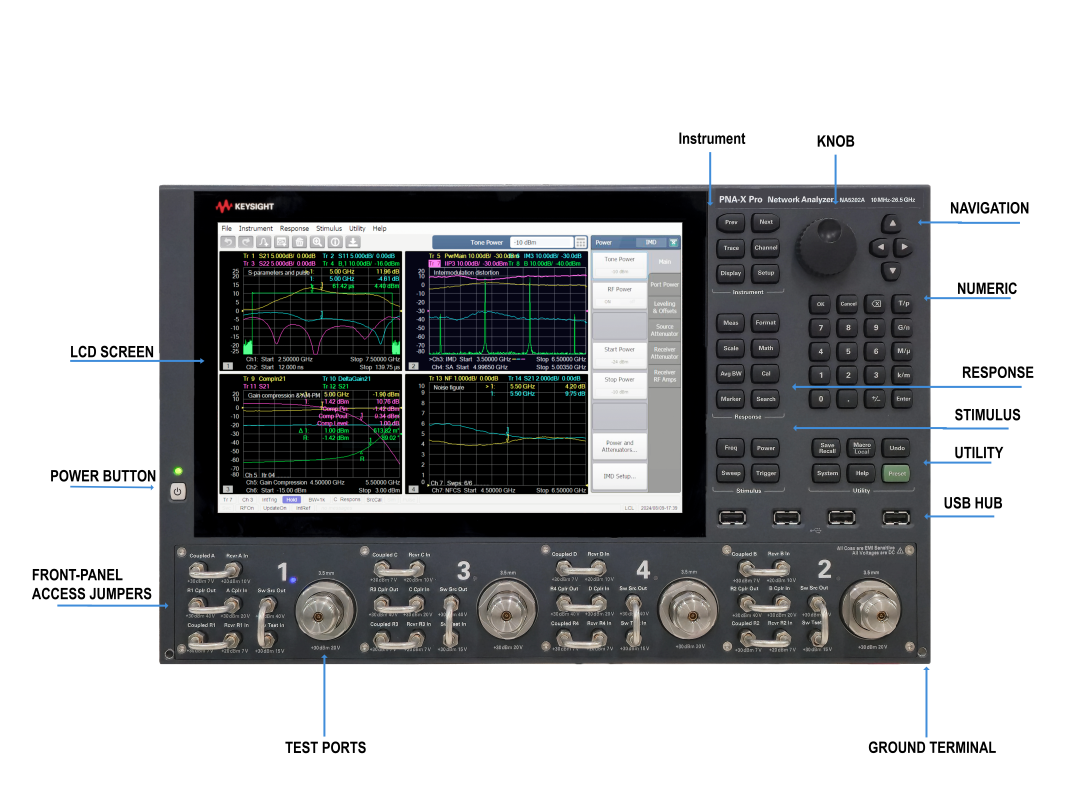
The NA520xA PNA-X Pro front-panel layout is shown below.
See also:
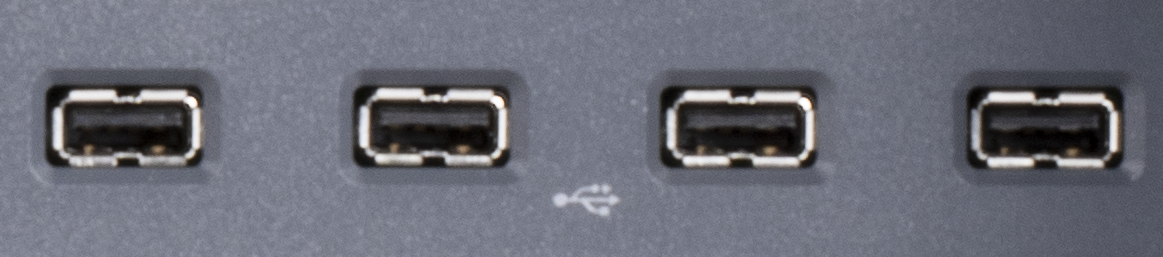
USB 2.0 ports - Primary (4 ports)
|
Description |
Typical Performance |
|---|---|
|
Test Ports |
NA5202A 3.5 mm (male), 50 ohm (nominal), 0.002 in. Center Pin Recession (characteristic) NA5204A/5A 2.4 mm (male), 50 ohm (nominal), 0.002 in. Center Pin Recession (characteristic) |
|
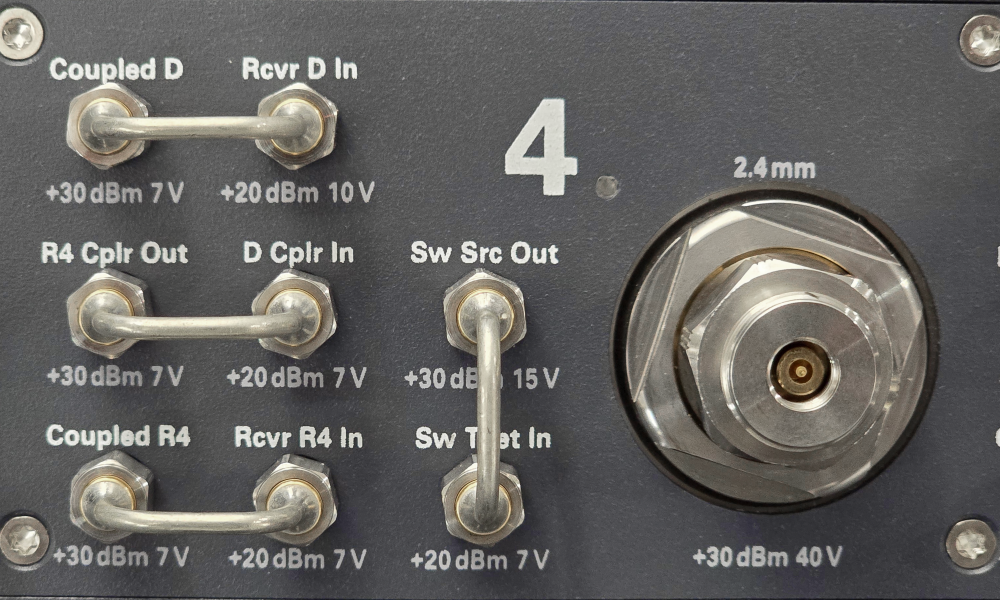
Jumpers |
NA5202A 3.5 mm (female) connectors with SMA (male) jumper cables NA5204A/5A 2.4 mm (female) connectors with 2.4 mm (male) jumper cables |
Used for choosing between power-on ( | ) and standby (O) state.
|
Description |
Typical Performance |
|---|---|
|
Standard |
Compatible with USB 2.0 |
|
Connector |
USB Type-A female |
|
Description |
Typical Performance |
|---|---|
|
Size |
31 cm (12.1 in) diagonal color active-matrix LCD; 1280 (horizontal) X 800 (vertical) resolution |
|
Refresh rate |
60 Hz |
|
Pixels |
Any of the following would cause a display to be considered faulty: A complete row or column consists of “stuck” or “dark” pixels. More than six “stuck on” pixels (but not more than three green) or more than 0.002% of the total pixels are within the LCD specifications. More than twelve “dark” pixels (but no more than seven of the same color) or more than 0.004% of the total pixels are within the LCD specifications. Two or more consecutive "stuck on" pixels or three or more consecutive "dark" pixel (but no more than one set of two consecutive dark pixels). “Stuck on” pixels or more than two “dark” pixels less than 6.5 mm apart (excluding consecutive pixels) |
|
Description |
Typical Performance |
|---|---|
|
Magnitude |
±2500 dB (at 500 dB/div), max |
|
Phase |
±2500° (at 500 degrees/div), max |
|
Polar |
10 pUnits, min 10,000 Units, max |
|
Description |
Typical Performance |
|---|---|
|
Magnitude |
0.001 dB/div, min |
|
Phase |
0.01°/div, min |
|
Description |
Typical Performance |
|---|---|
|
Magnitude |
0.001 dB, min |
|
Phase |
0.01°, min |
|
Polar |
10 pUnit, min |
Connect a banana-type plug to this terminal for grounding to the VNA chassis.
Manages the Traces and Channels on the VNA display.
|
Hard Key |
Invokes these Softkeys |
|---|---|
|
Prev |
Makes the previous Trace/Channel/Window active. |
|
Next |
Makes the next Trace/Channel/Window active. |
|
Trace |
Invokes the Traces softkey menu which allows you to manage traces. |
|
Channel |
Invokes the Channels softkey menu which allows you to manage channels. |
|
Display |
Invokes the Display softkey menu which allows you to manage display functions. |
|
Setup |
Invokes the Setup softkey menu which allows you to set up a measurement. |
Performs operations on measurement traces after data is measured - not including Data Analysis operations.
|
Hard Key |
Invokes these Softkeys - Click to learn more |
|---|---|
|
Meas |
Waves Auxiliary Meas Setup
|
|
Format |
Format 1
Format 2 |
|
Scale |
Main
Constants
|
|
Math |
Memory
Analysis
Time Domain
Time Gating
|
|
Avg BW |
Main
Smoothing
Delay Aperture
|
|
Cal |
Main
Port Extension
Cal Sets & Cal Kits
Fixtures
|
|
Marker Setup Marker Functions
|
|
|
Search |
Main
Peak
Target
Multi Peak & Target
Bandwidth & Notch
Comp & Sat
Normal Op Pt
|
Controls settings that determine what data (stimulus range), and how data (sweep type and triggering), is measured.
|
Hard Key |
Invokes these Softkeys - Click to learn more |
|---|---|
|
Freq |
|
|
Power |
Main
Port Power
Leveling & Offsets
|
|
Sweep |
Main
Sweep Timing
Source Control
Segment Table
|
|
Trigger |
Main
|
Performs global VNA operations.
|
Hard Key |
Invokes these Softkeys - Click to learn more |
|---|---|
|
Save |
Save State
Save Other
|
|
Macro |
Favorite 1 Favorite 2 Favorite 3 Macro 1 Macro 2 Macro 3 Key Setup
|
|
System |
Main
System Setup
Help
|
|
Undo |
Main
|
|
Help |
Launches the Help file. |
|
Preset |
Main
|
|
Hard Key |
Invokes these Softkeys |
|---|---|
|
OK |
Closes a dialog box and enters any values made in the dialog box. |
|
Cancel |
Closes a dialog box. |
|
Bk Sp |
Back Space. Backs up the cursor and deletes any previous selection. |
|
0 to 9 |
Selects values for measurement settings, then press Enter or G/n - M/u - k/m to complete the selection. |
|
T/p G/n M/u k/m |
Completes the value selection, assigning a unit of measurement.
|
|
Enter |
Enters the values that you select for the measurement settings. |
|
Decimal point |
Enters a decimal point to designate fractions of a whole number. |
|
+/- |
Plus - Minus Toggles between a positive and negative value entry if it is the first key pressed in the entry. |
Rotate to increase or decrease the value of the active entry.
These keys allow you to navigate through menus and dialog boxes and select choices from the active entry toolbar.
|
Hard Key |
Invokes these Softkeys |
|
Left / Right |
Moves left and right through menus. Moves tab-left and tab-right within dialog boxes. |
|
Up / Down |
Moves up and down through menus. Behaves as follows in a dialog box:
|
|
Click |
Makes a selection just like a mouse click. |