Constant Frequency
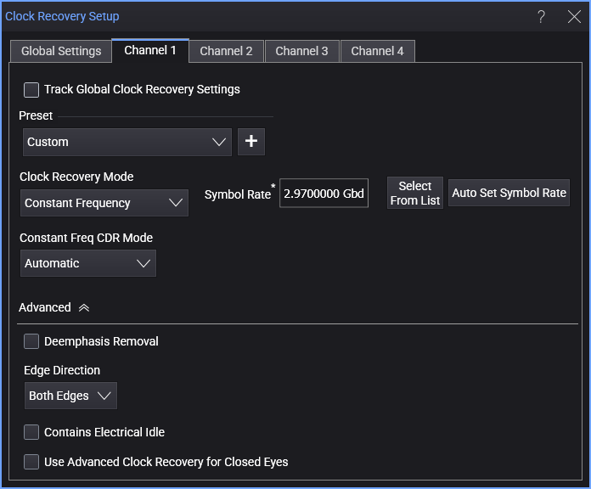
When the Constant Frequency clock recovery mode is selected, the dialog box has these controls:
-
Symbol Rate — Enter the signal's expected baud rate.
The Select From List drop-down menu lets you select typical rates for standard communication interface technologies. The Auto Set Symbol Rate button runs a data rate measurement and populates the Symbol Rate field with the data rate measured on the input signal.
-
Clock Skew — For PAM type signals, this can be used to center the eye opening at the clock locations by shifting the clocks relative to the data.
-
Constant Freq CDR Mode — These modes are available:
-
Automatic — Fully automatic constant frequency clock recovery does not require you to enter any information about the signal.
The algorithm looks for the narrowest pulse in time and presumes it is an isolated one or zero. (For signals with a lot of inter-symbol interference (ISI), a particularly narrow pulse width can throw off this algorithm, giving a nominal data rate that is too fast.)
The algorithm then determines the number of bits in other pulse widths based on this time to determine the number of bits in every width.
-
Semi Automatic — Semi-automatic constant frequency clock recovery lets you "seed" the algorithm by entering the nominal data rate yourself. This allows the algorithm to run faster because it does not need to make two passes through the data.
The algorithm then computes the average actual bit width and computes the number of bits in every pulse accurately.
The Symbol Rate you enter is the seed for the algorithm.
-
Manual — The Symbol Rate you provide is used.
The Symbol Rate you enter should be the reciprocal of the unit interval for your serial data stream.
With either the Automatic or Semi Automatic options, the actual data rate and clock phase is measured such that the mean Time Interval Error (TIE) is 0. From this, the recovered clock is created.
-