Waveform Histograms Dialog Box
Use the Waveform Histograms dialog box to turn on and configure up to four histograms.
To turn on the selected histogram, select Histogram On.
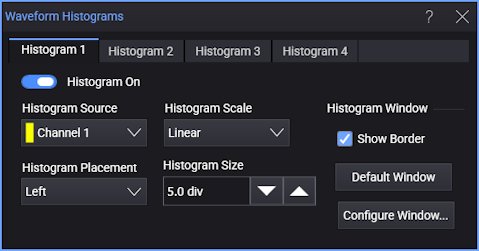
Histogram Source
Select the waveform whose vertical or horizontal values the histogram will measure.
Histogram Placement, Scale, and Size
The Histogram Placement selects the orientation of the histogram. The selected placement is where Zero hits are located. Select Left or Right for vertical voltage or power measurement histograms. Select Top or Bottom for horizontal timing measurement histograms.
The Histogram Scale option lets you select Linear or Log scaling.
The Histogram Size specifies the maximum width or height of the histogram in grid divisions. Each time the histogram is updated, bar sizes are adjusted to this maximum.
Infiniium maintains separate size settings for the vertical and horizontal axes. When you switch between a vertical histogram and a horizontal histogram, the size setting could be different.
Histogram Window
The histogram window is the area in which histogram measurements are made.
When Show Border is selected, the histogram window border and adjustment handles appear on the display. You can drag the border or handles to resize the histogram window.
To set the default histogram window position, click Default Window.
For precise histogram window positioning, click Configure Window.... See Waveform Histogram Window.
Default Histogram with Left Placement
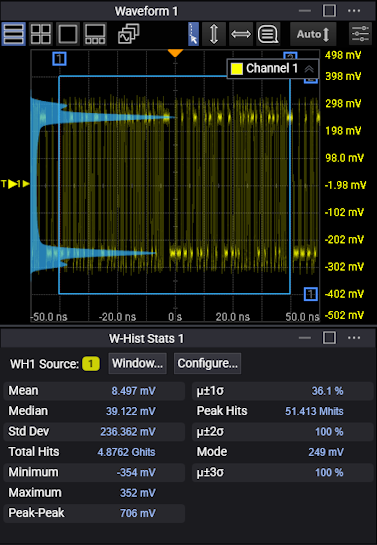
The default setup positions the histogram markers as follows:· X1 < X2· Y1 < Y2. The values of X1 and Y1 can be made greater than the values of X2 and Y2 by repositioning the markers. The histogram window is always the area inside the boundaries of X1 and X2 and Y1 and Y2, regardless of the marker values.