Infiniium Display Overview
The main areas in the Infiniium graphical user interface (GUI) are:
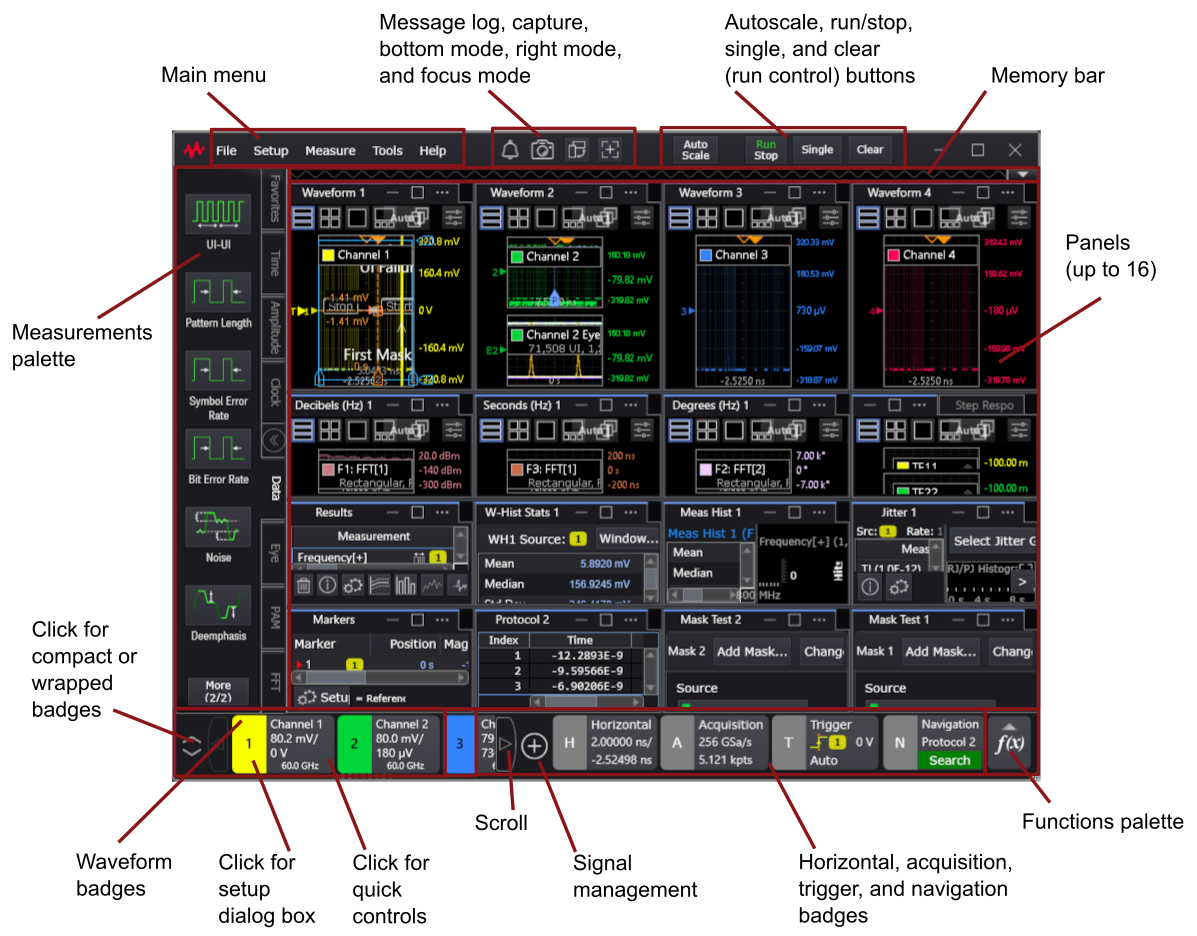
Click the callout description or area for more information.
The top bar contains the Main menu and these buttons:
| Icon | Name | Description |
|---|---|---|

|
Message Log | Opens the Message Log Viewer dialog box that saves recent messages. Each message has a "?" help button that gives you more information about the message. |

|
Capture | Opens the Save dialog box and selects the Screen Image tab where you can capture and save the screen image. |

|
Bottom or Right mode | Specifies the bottom or right side of the display as the preferred location for adding Results panels and other windows. |

|
Focus mode | Focus mode hides the display's left-side measurements bar and window panel controls to maximize the amount of space for waveforms and results. |
Waveform Content Windows
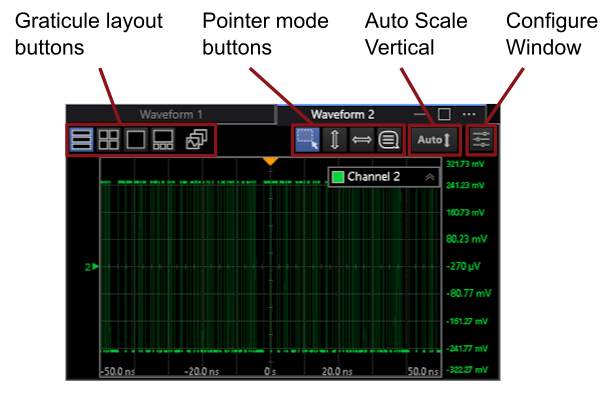
Graticule Layout Buttons
| Icon | Name | Description |
|---|---|---|

|
Stacked Mode | When there are multiple waveforms in the window, their grids are stacked vertically. |

|
Tiled Mode | When there are multiple waveforms in the window, their grids are tiled. |

|
Overlapped Mode | When there are multiple waveforms in the window, they are overlaid in one grid. |

|
Tab Tile Mode | When there are multiple waveforms in the window, the one displayed in the grid is selected from the tiles at the bottom. |

|
Customize Layout | Opens the Custom Layout dialog box where you can drag waveforms into one of four Waveform windows. See Customize Layout of Windows. |
Pointer Mode Buttons
| Icon | Name | Description |
|---|---|---|

|
Zoom Mode | Drag the pointer to draw a box. When you release the pointer, a pop up menu appears where you can select zoom options and other waveform area operations.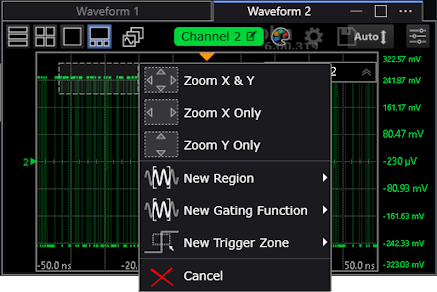 |

|
Y Pan Mode | You can drag waveforms up and down to adjust the vertical offset. |

|
X Pan Mode | You can drag waveforms left and right to change the horizontal position (delay). |

|
Annotate Mode | Drag the pointer to draw a box. When you release the pointer, a pop up menu appears where you can select annotation options.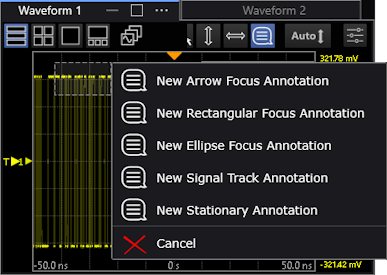 See Annotations. |
Auto Scale Vertical Button
| Icon | Name | Description |
|---|---|---|

|
Auto Scale Vertical |
Performs a vertical Auto Scale of all the waveforms in the window.
To perform a vertical Auto Scale of individual waveforms, right-click the waveform name in the legend and choose Vertical Autoscale. 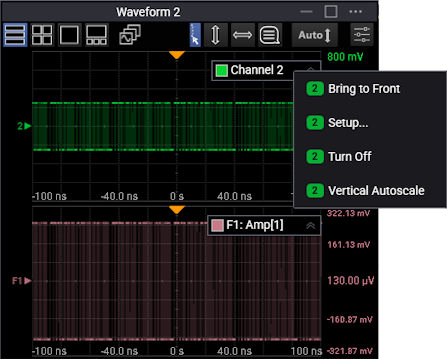 |
Configure Waveform Window Button
| Icon | Name | Description |
|---|---|---|

|
Configure Waveform | Opens the Configure Waveform Window dialog box, which provides access to regions and selections normally located in the Display Setup (Graticule tab). |