:FUNCtion Subsystem
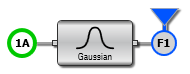
Use the :FUNCtion subsystem to create up to 64 functions. For example, the following picture shows a Gaussian operator defined as function 1 (F1). The commands in this subsystem setup the basic design of the function such as its operator, source waveform, function number, and signal tracking commands as well as scaling queries. Most operators have have specific attributes which you can select using the commands found in the :FUNCtion:PARameters subsystem.
To create and configure a function:
- Use the
:FUNCtion:FOPeratorcommand to create the function. - Use the commands in the
:FUNCtion Parameters Commandssubsystem to configure your function.
The commands in the :FUNCtion subsystem create and modify one of 64 individual functions, as identified by an index: :FUNCtion{1:64}. For example,
:FUNCtion3:OPERand1indicates that the :OPERand command applies to function 3. To create a function, use the :FUNCtion:FOPerator command.
Some functions require additional configuration, which is accomplished using :FUNCtion:PARameters subsystem commands as explained in the :FUNCtion:FOPerator topic.
The currently displayed function is automatically saved as part of the Infiniium's state. Even if you close the Infiniium application, the next time you open the Functions dialog box, your function will be there. A Default Setup (:SYSTem:DEFault) erases the current function definition. To save your function definition, click File > Instrument Setup.
Example Command Sequence
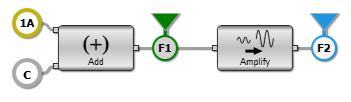
This example creates two functions as shown in the following figure. You can quickly create this code by turning on the SCPI Recorder and using Infiniium's Functions dialog box to build the functions. When finished, click Save in the SCPI Recorder to save the commands to a text file.
In the following commands, the :FUNCtion:FOPerator is used to define Function 1 as the Add operator and Function 2 as the Amplify operator. The :FUNCtion:OPERand command is used to assign various operands to each function.
An example program is provided that shows how to apply a S2P (convolve) operator which can be used to compensate for the loss of a channel element such as a cable or fixture. Example are provided for C#.NET, Labview, MATLAB, and Python. Look in the oscilloscope (or PC) installation folder: \Keysight\Infiniium\Demo\Example Programs
:FUNCtion1:FOPerator ADD
:FUNCtion1:OPERand1 CHAN1_1
:FUNCtion1:OPERand2 CONStant1
:FUNCtion1:CONStant 2.0
:FUNCtion1:COLor TCOLor2
:FUNCtion1:DISPlay ON
:FUNCtion2:FOPerator AMPLify
:FUNCtion2:OPERand1 FUNCtion1
:FUNCtion2:COLor TCOLor3
:FUNCtion2:DISPlay ON
- If a channel is not on but is used as an operand, then that channel will acquire waveform data.
- If the source waveforms have different record lengths, the function is performed over the shorter record length. The nearest point is located in the longer waveform record that corresponds to the current point in the shorter record. It then performs math functions on those points and skips non-corresponding points in the longer record.
- If the two sources have the same time base scale, the resulting function has the same time scale. If the sources cover two different time intervals, the function is performed on the portion of the sources that overlap. If the sources don't overlap, the function cannot be performed.
- If the operands have different time scales, the resulting function has no valid time scale. This is because operations are performed based on the displayed waveform data position, and the time relationship of the data records cannot be considered. When the time scale is not valid, delta time pulse parameter measurements have no meaning, and the unknown result indicator is displayed on the screen.
- Numeric constant sources have the same horizontal scale as the associated waveform source.