File Path Substitution Strings
When programming, always use a path substitution strings when specifying file. Path substitution strings:
- Ensure that you locate the correct parent folder for Infiniium 2026's standard user folders.
- Shorten the writing of a file path
- Eliminate the need to remember path differences between different versions of the Windows operating system on the oscilloscope or the PC.
For example, when programmatically saving a screen capture to the Windows desktop you could use the following command:
:DISK:SIMage:FNAMe "c:\Users\<user>\Desktop\test.png"
:DISK:SIMage:SAVE
but, the recommended and reliable technique is to use the %DESKTOP% path substitution string:
:DISK:SIMage:FNAMe "%DESKTOP%\test.png"
:DISK:SIMage:SAVE
You must always append a filename when using a path substitution string. Failure to so will result either in a file created in an parent folder or a file error. For screen images, the filename must include a filename extension. For most other file types, do not append a filename extension as the file type is specified using an :FNAMe:FTYPe child command. For example, :DISK:WAVeform:SAVE:FTYPe.
Use the Interactive SCPI Command Tree to see the expanded path
If you want to see how path strings are expanded, use the string in one of the many :FNAMe commands and then query the command for the expanded path. Don't forget to add a subfolder and test filename. For example,
-
Click Tools > SCPI Programming Tools > Interactive SCPI Command Tree....
-
In the Interactive SCPI Command Tree, locate the
:DISK:SIMage:FNAMecommand as shown in the following picture. -
Enter the path string with subfolder and filename. For example:
%USER_DATA_DIR%\Screen Images\DUT-4.png-
Click Run.
-
Click Query to view the expanded path which is shown in the dialog's Run/Query Output field.
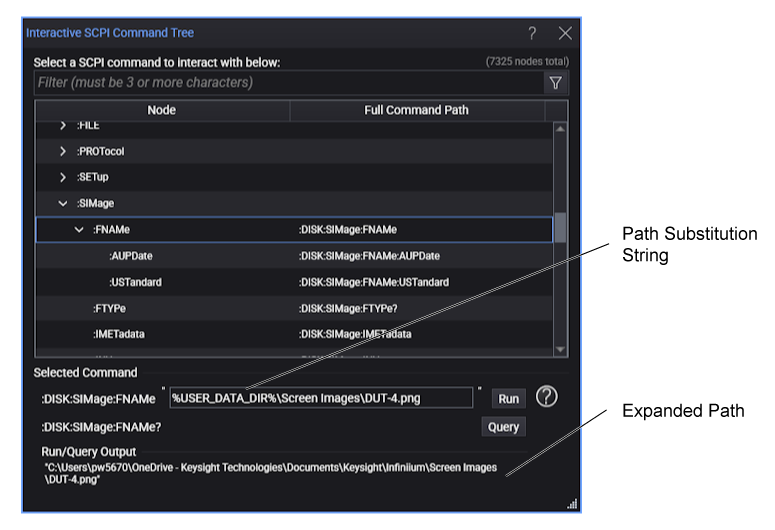
%USER_DATA_DIR% Path Substitution String
Use the %USER_DATA_DIR% string to place a file in a folder beneath the standard user folder as shown in this example. Depending on where Infiniium 2026 is running, the location of Infiniium 2026's standard user folders varies as shown in the following pictures. The %USER_DATA_DIR% path substitution string points to the root user folder: \User Files or \Infiniium 2026 folder. You would need to append the standard subfolder name and filename.
:DISK:SIMage:FNAMe "%USER_DATA_DIR%\Screen Images\test.png"
:DISK:SIMage:SAVE  //  Save screen image to standard user folder
The following subfolders exist under the %USER_DATA_DIR% folder:
- Adapter Definitions
- Colorgrade-Grayscale
- De-Embedding Networks
- Documentation Results
- Jitter Data
- Limit Lines
- Limit Summaries
- Masks
- Patterns
- Presets
- Protocols
- SCPI Scripts
- Screen Images
- Setups
- SNDR
- S-Parameter Data
- User App Menu Items
- User Functions
- User Measurements
- Waveforms
| Environment | String Expansion | |
|---|---|---|
| Oscilloscope | Windows 11 | D:\User Files\subfolder\filename |
| PC | Windows 11 | C:\Users\<user>\Documents\Keysight\Infiniium\subfolder\filename |
%DESKTOP% Path Substitution String
Use the %DESKTOP% string to place a file on the Windows desktop. For example,
:DISK:SIMage:FNAMe "%DESKTOP%\test.png"
:DISK:SIMage:SAVE  //  Save screen image to desktop
| Environment | String Expansion | |
|---|---|---|
| Oscilloscope | Windows 11 | C:\Users\admin\Desktop\filename |
| PC | Windows 11 | C:\Users\<user>\Desktop\filename |
%MY_DOCUMENTS% Path Substitution String
Use the %MY_DOCUMENTS% string to place a file in the Windows My. For example,
:DISK:SIMage:FNAMe "%MY_DOCUMENTS%\MyFolder\test.png"
:DISK:SIMage:SAVE  //  Save screen image to a custom user folder
| Environment | String Expansion | |
|---|---|---|
| Oscilloscope | Windows 11 | C:\Users\admin\Documents\filename |
| PC | Windows 11 | C:\Users\<user>\Documents\filename |
%TEMP_DIR% Path Substitution String
Use the %TEMP_DIR% string to place a file in a temporary Windows folder. For example,
:DISK:SIMage:FNAMe "%TEMP_DIR%\test.png"
:DISK:SIMage:SAVE  //  Save screen image to desktop
| Environment | String Expansion | |
|---|---|---|
| Oscilloscope | Windows 11 | C:\Users\admin\AppData\Local\Temp\Keysight\filename |
| PC | Windows 11 | C:\Users\<user>\AppData\Local\Temp\Keysight\filename |
%DEMO_DIR% Path Substitution String
Use the %DEMO_DIR% string to place a file under the \Demo folder in with the Infiniium installation files. The following example loads a setup file from the \Demo folder.
:DISK:SETup:RECall "%DEMO_DIR%\Setups\Demo\Simulator\SSC_Sinusoidal_Demo_Simulated_Signal_2_97G_NRZ.seti"
The following subfolders exist under the \Demo folder:
- Adapter Definitions
- Example Programs
- Jitter Data
- Limit Lines
- Masks
- Presets
- SCPI Scripts
- Setups
- S-Parameter Data
- User Functions
- User Measurements
- Waveforms
| Environment | String Expansion | |
|---|---|---|
| Oscilloscope | Windows 11 | C:\Program Files\Keysight\Infiniium\Demo\subfolder\filename |
| PC | Windows 11 | C:\Program Files\Keysight\Infiniium\Demo\subfolder\filename |
%PROGRAM_FILES% Path Substitution String
Use the %PROGRAM_FILES% string to access a file in the \Program Files folder. Most users will never need to use this string.
| Environment | String Expansion | |
|---|---|---|
| Oscilloscope | Windows 11 | C:\Program Files\filename |
| PC | Windows 11 | C:\Program Files\filename |
%PROGRAM_FILES_x86% Path Substitution String
Use the %PROGRAM_FILES_x86% string to access a file in the \Program Files folder. Most users will never need to use this string.
| Environment | String Expansion | |
|---|---|---|
| Oscilloscope | Windows 11 | C:\Program Files (x86)\filename |
| PC | Windows 11 | C:\Program Files (x86)\filename |
%LICENSE_DIR% Path Substitution String
Use the %LICENSE_DIR% string to place a Keysight license file in the \Licensing folder. Most users will never need to use this string.
| Environment | String Expansion | |
|---|---|---|
| Oscilloscope | Windows 11 | C:\ProgramData\Keysight\Licensing\Licenses\Other\filename |
| PC | Windows 11 | C:\ProgramData\Keysight\Licensing\Licenses\Other\filename |