Channel N Advanced Setup
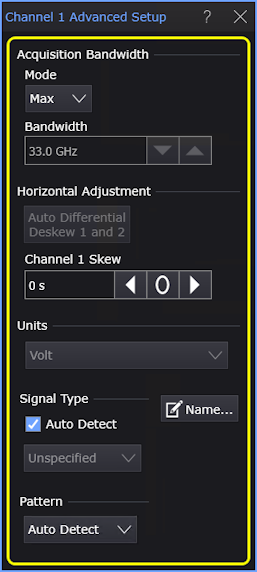
The Channel N Advanced Setup dialog box contains advanced settings for oscilloscope input channels.
To open this dialog box:
- Click the colored portion of a channel badge to open the channel Setup dialog box.
- In the channel Setup dialog box, click the Advanced... button.
A similar Advanced Setup dialog box is available for differential channels. See Differential (or Common-Mode) N Advanced Setup.
Acquisition Bandwidth
These settings apply to the oscilloscope input channel's hardware bandwidth limit filter.
-
Mode — You can select either the Max available bandwidth or a Custom limited bandwidth.
-
Bandwidth — When the Custom option is selected for Bandwidth, enter the limited bandwidth value in this field.
Horizontal Adjustment
-
Auto Differential Dekew — This button is available when the channel is combined with another channel to provide differential and common-mode waveforms. See Differential (or Common-Mode) N Advanced Setup.
-
Channel N Skew — Changes the channel's horizontal alignment with respect to other channels.
The skew adjustment does not change a channel's alignment with respect to the trigger point, so adjusting the skew of a channel that is being triggered on does not appear to adjust the displayed waveform; however, the display of other channels will be adjusted.
Skew is set to a default value of zero. If you change it to a nonzero value, but want to return to zero, click the 0 button.
Units
When this field is active, you can change the magnitude units.
Signal Type and Pattern
These are the same controls that are in the Signal Type Setup dialog box. You can make signal type and pattern selections in either location. See Signal Type Setup.
Name…
 Waveforms displayed in tiled, stacked, or tab tile views include a waveform label. You can change the waveform's labels to your own more meaningful user name by clicking the Name... button. See also: Custom Waveform Names.