Views and Panels
Waveform views, panning, and zoom
When multiple waveforms are displayed, use the waveform view buttons to display different display layouts. Waveforms can be displayed as overlapped, tiled, stacked, or tab tile.

| Button | View | Button | View |
|---|---|---|---|

|
Stacked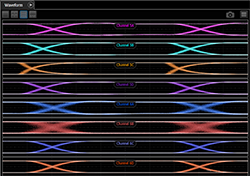 |

|
Tiled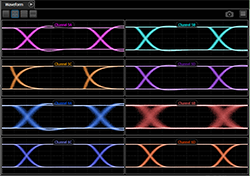 |

|
Overlapped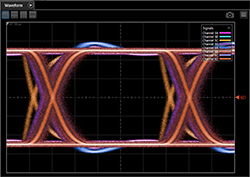 |

|
Tab Tile |

|
Opens the Customize Layout dialog box for moving waveforms between windows. See Customize Layout of Windows. | ||
Each content window includes up to six right-side toolbar buttons, depending on the type of displayed waveforms. The right-side toolbar buttons provide quick access to waveform settings and common tasks.

| Button | Description | |
|---|---|---|

|
Click to change the color of the selected waveform. | |

|
Displays a setup dialog box for scaling channel, differential channel, and memory waveforms. | |

|
Depending on the type of selected waveform, saves the waveform to a file:
|
|

|
Saves a screen capture to a graphics file. | |

|
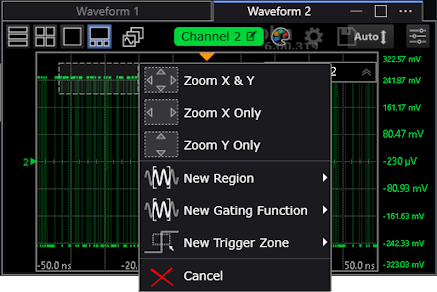
Drag over a waveform area to zoom in, set up a region, or set up a gating function (based on a region). When you release the mouse button, a context menu lets you select the action to take.
If Interactive Region Adjust is off (see Regions), you can draw boxes within a region. |
|

|
Move the waveform in the vertical directions. | |

|
Move the waveform in the horizontal directions. | |

|
Drag the pointer to draw a box. When you release the pointer, a pop up menu appears where you can select annotation options.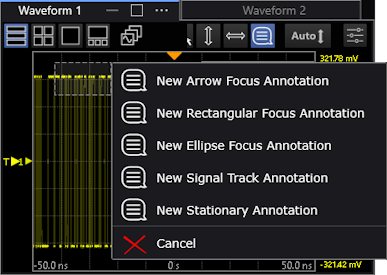 See Annotations. |
|

|
Performs a vertical Auto Scale of all the waveforms in the window. | |

|
Displays the Configure Waveform dialog box, which provides access to regions and selections normally located in the Display Setup (Graticule tab). | |