Save Setup Files
In the Save dialog box, use the Setup tab to save the current instrument setup to a file. When loading back into Infiniium, the file restores the application's settings to those in place at the time that the file was saved. You can save the setup to the instrument's internal hard disk or an external memory device. To open a setup file, see Open Setup Files.
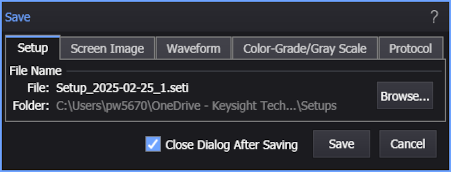
To save an instrument setup file
- Click Browse... to change a target file name and folder that is different from the default.
- Click Save to save the file.
The default user data folder for saving setup files is \Setups.
When you save a setup, all the Infiniium's settings are saved to the file you have selected, including:
- Type of measurements currently running
- Markers (if used)
- Horizontal and vertical settings
- Trigger configuration
- Display setup
- Functions
- Fixture Deskew data (if saved at the end of the deskew procedure)
- Instruments connection
- Displayed waveform content windows
Ensure your setup files have the extension, .seti. If you do not specify an extension or use a different extension, the instrument may not recognize the file as a setup file, therefore you may have trouble saving or finding the setup file.
Be sure to save an instrument setup file when saving jitter data or color-grade gray-scale memory files. This is because horizontal scale and delay information are not saved in jitter data or color-grade gray-scale memory files. If you plan on loading these memory files back into the Infiniium, you will also need to load the associated Infiniium setup file.
Infiniium maintains its current settings in a system file, which is not the same as a setup file that you can save and open. To ensure that the settings are correctly saved, close the Infiniium application from the File menu using the Exit command.
File Names
After a default setup, the file name assigned to a setup file takes the form Setup_2025-04-08_1.seti. As you can see in this example, the incremented number "_1" is automatically appended after the date field. With each subsequent file save, this number is incremented. Appending an autogenerated number helps to prevent the accidental writing over of an existing file. Each setup file uses approximately 20 kB of disk space.
If you click Browse, you can replace this automatically generated name with any name that you like. For example, my_file.seti. In this case, the first file saved will be my_file.seti. If you have cleared Close Dialog After Saving, the next file will have the characters "_1" appended as in my_file_1.seti. This number automatically increments on each subsequent save. If you select Close Dialog After Saving, the default file name reverts back to the form Setup_<date><autonumber> as described at the beginning of this section.
If you enter a file name that has an arbitrary number appended, for example this_file_57.seti, Infiniium will detect this and save the subsequent file as this_file_58.seti.