Function Setup
Use the Function Setup dialog box to display a function's waveform and to apply vertical and horizontal scaling.
To open the Function Setup dialog box, click the function waveform's badge in the badges bar at the bottom of the application's window. Or, in your function diagram (see Functions), click the function's output waveform icon .
.
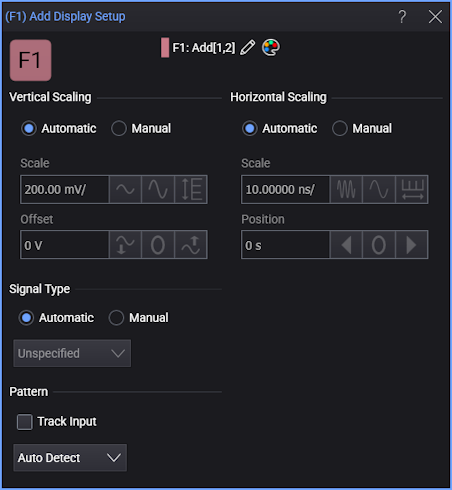
Click the F<N> button to toggle the display of the function's waveform on and off. A gray button indicates that the waveform is not displayed. When displayed, the color of the F<N> button matches the color of the waveform.
Vertical and Horizontal Scale
Select Automatic or Manual for Vertical Scaling and Horizontal Scaling. With Automatic, the function's output waveform is appropriately scaled and offset based on the scale and offset of the input waveforms. Function scaling tracks any changes to the source scaling. With Manual, changes are no longer tracked and you can independently scale, offset, and position the function's output waveform. Some functions do not allow all of the scaling options shown in the above picture of the dialog box.
The correct units are displayed for the function.
If the application cannot resolve a particular combination of units, it will display U/div meaning unknown units per division.
Signal Type
Signals can be one of three signal types: Unspecified, NRZ format, or PAM4 format. The PAM4 selection is available only if options 9FP or 9TP PAM-N Analysis software license is installed. Select Automatic to have a function's output signal type follow the function's input signal types. Unlike channel, common mode, and differential waveforms, a function's output signal type is not detected but instead tracks the input signal types. If an input signal type changes, the function's signal type tracks. Consider the examples of signal tracking in the following table. The Add function is shown simply to show a dual-input function. Automatic is the default setting.
| Example | Input Signal Types | Example Function | Output Signal Type |
|---|---|---|---|
| 1 | Input 1: PAM4 Input 2: PAM4 |

|
PAM4 |
| 2 | Input 1: PAM4 Input 2: NRZ |
Unspecified | |
| 3 | Input 1: NRZ Input 2: constant |
NRZ |
When tracking is set to Manual, the function's output signal type no longer tracks the inputs. Instead, you specify the function's output signal type in the drop-down list.
The Signal Type settings are coupled to the identical settings that are in the Signal Type Setup dialog box. You can make these selections in either location.
Waveform Color
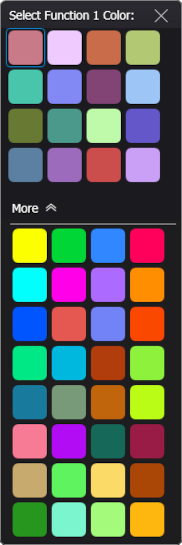
Click the  icon to display the waveform in one of 48 colors.
Custom Waveform User Names
Waveforms displayed in tiled, stacked, or tab tile views include a waveform label (see Views and Panels). You can change the waveform's labels to your own more meaningful user name by clicking the Name button or by clicking the  icon that appears in the waveform label at the top of this dialog box. See Custom Waveform Names.