Measurement Results
Measurement results are calculated from the most recent acquisition sweep of the active channel.
Measurement results appear in the measurement results panel.
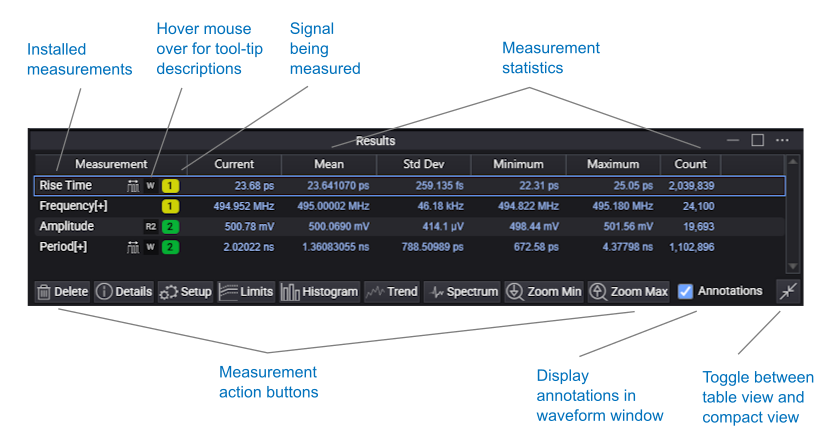
You can reorder measurement results simply by dragging them up or down in the list.
The measurement results panel also shows any measurement failures or instrument messages that occur.
At the bottom of the results panel are buttons that let you take actions on the selected measurement:
-
Delete — Deletes the measurement.
-
Details — Displays measurement details. The dialog box that is opened shows the status of the measurement, which can be "Correct", "Questionable", or "Invalid", and short explanations if the measurement is "Questionable" or "Invalid" (see Table of Measurement Messages). Click the Algorithm button to display a help topic that describes how the measurement is made.
-
Setup — Edits the measurement parameters and options.
-
Limits — Sets up limit testing on the measurement results. See Measurement Limits.
-
Histogram — Adds a histogram for the measurement results. See Measurement Histograms.
-
Trend — Adds a Measurement Trend function. See Measurement Trend Operators.
-
Spectrum — Creates an FFT of the measurement trend showing its frequency content. This FFT can help you identify single or multiple sources causing measurement variation.
-
Zoom Min, Zoom Max — For Trend-able time measurements, when all occurrences are being measured over the entire waveform (see the Occurrences and Region measurement options), these buttons will stop acquisitions if they are running, reset statistics for the most recent acquisition, and then automatically adjust the horizontal scale and position to zoom in on the occurrence with the Minimum or Maximum measured value.
Note that you can use Undo (or History) in the Setup menu to undo the horizontal scale and position adjustments made by Zoom Min or Zoom Max.