Protocol Search
To search protocol data:
-
Open the Protocol Decode dialog box (Setup > Protocol Decode...) and enable a protocol decode.
-
Click Setup Search....
-
In the Protocol Search dialog box, use these controls to set up the search:
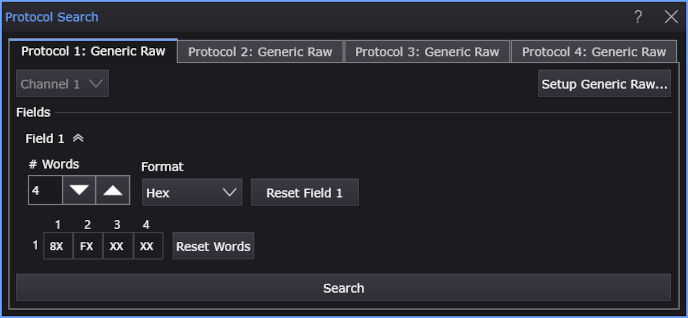
There are tabs for up to four protocol decodes, Protocol 1 through Protocol 4. Within each tab are these controls to set up the search:
-
If there are multiple signals being decoded, you can use the source drop-down list to specify which signal to search.
-
Setup (protocol type)... — Opens the Protocol Decode setup dialog box. See Protocol Decode.
-
Copy from Qualification — Copies the setup used for protocol qualified triggers to the search setup. See Protocol Qualified Triggers.
-
Type — Depending on the type of protocol being decoded, this drop-down list lets you select, for example, between searching for symbol sequences or errors.
-
Fields — Depending on the type of protocol being decoded, this drop-down list lets you select, for example, between searching for symbol sequences or errors.
When searching for symbol sequences, you have these controls:
-
Field N — Selects the field whose values you want to specify and the enables the controls for specifying those values.
-
# Words — Specifies the number of words you want to search in the field.
Selecting a word opens a pop-up dialog for specifying the word value.
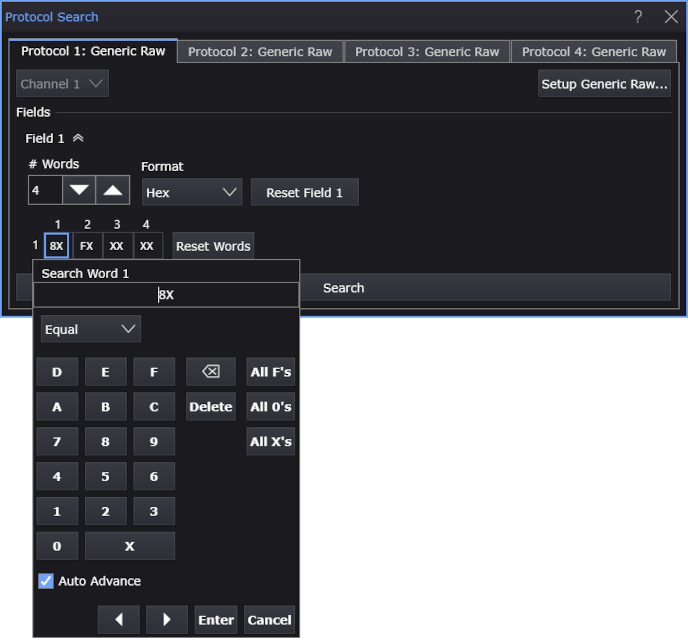
Note that you can use Equal or Or operators, backspace, Delete, TAB to the next word, enter All F's (ones), All 0's (zeros), or All X's (don't cares), Reset Word (reset the selected word value), navigate to the previous (◄) or next (►) word, Enter, or Cancel edits.
-
Format — Selects the number format for specifying word values: Hex, Decimal, or Binary.
The Hex and Binary options let you enter "don't care" values.
-
Reset Field N — Resets the Field N controls to their default values and resets the defined payload.
-
Reset Words — Resets the defined payload (without resetting the Field N controls).
When searching for errors, you have this control:
-
Field N — This drop-down list lets you select the type of error(s) to search for.
-
-
Search — Stop acquisitions, highlights the first value specified by the other dialog box controls that is found in the waveform window (with a blue marker), and enables the Navigation badge
-
To navigate through the protocol decode values that are found, see Navigating Protocol Search.