Lesson 1. Creating a "Hello World" User Measurement Script
This Python example is the equivalent of a typical "Hello World" user measurement script. It is the simplest possible example designed to prove that your Infiniium / Python environment is working correctly and to illustrate all of the basic steps required to create a user measurement. After you've been successful with this example, try the Lesson 2. Creating a "Show Vars" User Measurement Script. Like all user-measurement Python scripts, HelloWorld.py consists of the following items:
- An algorithm function. Your scripts can have additional functions, but it must have the algorithm function.
- Infiniium passes a dictionary of input variables to the algorithm function.
- The script must return a dictionary of measurement results. These are the values that are returned to Infiniium and get displayed in Infiniium's measurement results table and indicate the measurement's status.
- If the measurement cannot be made, return a dictionary that has one key "ErrorMsg" with the value "No Data'.
Color has been added to the following example lines of the XML code to make them easier to read.
- Make sure that you have fulfilled the properly installed Python.
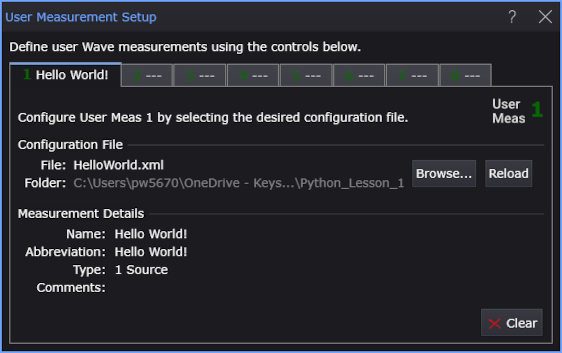
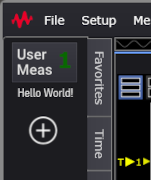
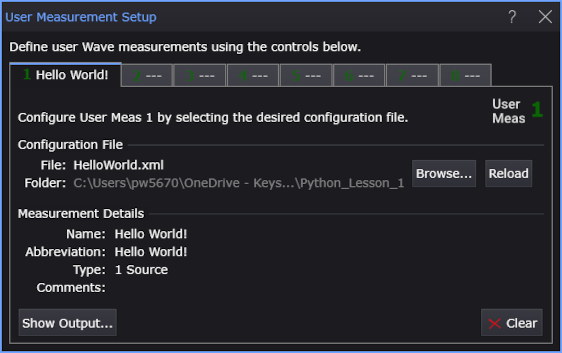
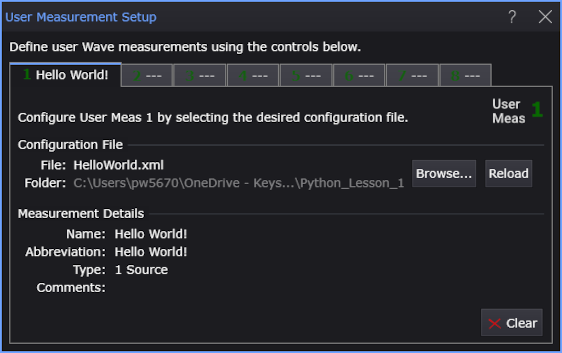
- Copy the following XML listing into a text editor. Name the file HelloWorld.xml and save it in Infiniium's user measurements folder (\Documents\Keysight\Infiniium\User Measurements). Later, when this XML file is imported into the User Measurement Setup dialog box, it identifies the HelloWorld.py script, populates the dialog box, and creates the user measurement button as shown in these figures.
- <?xml version="1.0" encoding="utf-8"?>
- <Measurement xmlns:xsd="http://www.w3.org/2001/XMLSchema"
- xmlns:xsi="http://www.w3.org/2001/XMLSchema-instance">
- <Script>HelloWorld.py</Script>
- <Name>Hello World!</Name>
- <!-- <Icon>MyPicture.png</Icon> -->
- <ValidType>Wave</ValidType>
- <MeasurementType>1 Source</MeasurementType>
- </Measurement>
- Copy the following script into your text editor. Name your script file HelloWorld.py and save it in Infiniium's user measurements folder (\Documents\Keysight\Infiniium\User Measurements). Items to note in the script are:
- Input waveform, SrcData, that is passed as a key:value pair in the variables dictionary.
- Output variable, Result, that returns a pretend measurement value, 4.2. This is a very simple script that does not even calculate a result.
- The print statement that can be used for troubleshooting by writing text to the User Measurement Output dialog box.
- Four variables returned as a dictionary (key:value pairs). The order that you list the key: value pairs is not important, however all four key:value pairs must be returned.
- Let's test your script before we run it in Infiniium:
-
In a Command Prompt window, change to the user measurements folder (\Documents\Keysight\Infiniium\User Measuremnets).
-
Enter the command: python HelloWorld.py
You should see the output:
Hello World! {'Result': 4.2, 'Units': 'dB', 'Status': 'Correct', 'ErrorMsg': ''}Notice that "Hello World!" is displayed along with the returned dictionary listing. The order of the dictionary key:value pairs (Result, Units, Status, and ErrorMsg) in the window does not matter.
- Make a Single acquisition.
- Choose Measure > Measurements....
- At the bottom of the Add Measurements dialog box, click User Defined Wave Measurements....
- In the User Measurement Setup dialog box, select an available tab.
- Click Browse... and select your XML configuration file, HelloWorld.xml.
- Add the measurement. Click on your new Hello World! measurement button.
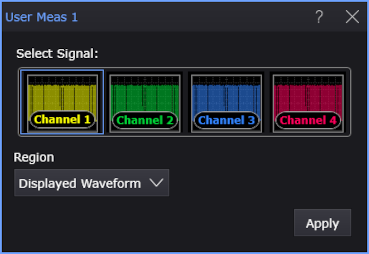
- In the User Meas dialog box, select the Signal and measurement Region; then, click Apply.
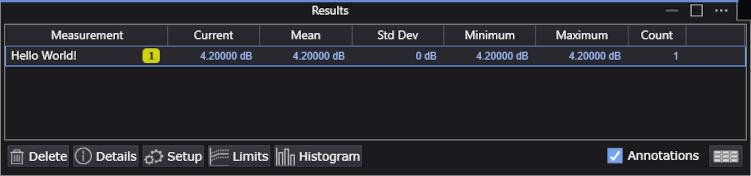
- In the Results content window, notice that the Hello World! measurement result of 4.2 dB is reported.
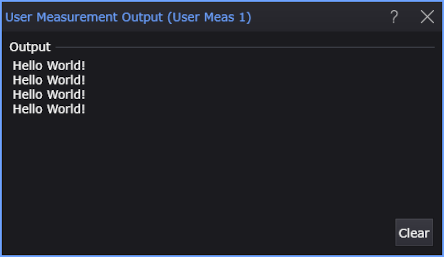
- Back in the User Measurement Setup dialog box, in the Hello World measurement tab, click the Show Output... button. This button appears in the dialog box only after the measurement has been added. If the dialog box is already open, close it, and reopen it to see the Show Output... button.
- In the displayed User Measurement Output dialog box, you should see the output of the print statement in your HelloWorld.py script. One Hello World! is printed each time the measurement is run. For this picture, Infiniium was in Single acquisition mode with the Single button clicked four times. You can use this feature to troubleshoot your scripts.
|
|
|
|
| The <Icon> element is optional. This element allows you to place a picture on your user operator icon. | ||
| Example measurement button without <Icon> element  |
Example measurement button with <Icon> element  |
|
import numpy as np

def algorithm(variables):

    # Print to User Measurement Output window.
    print('Hello World!')

    # Get input variables (including waveform or eye data).
    SrcData = variables['SrcData'] if 'SrcData' in variables else np.empty(0, dtype=np.float32)
    num_samples = len(SrcData)
    if num_samples == 0:
        return {'ErrorMsg': 'No data'}
    # Other input variables are:
    # 'Source' string
    # 'SymbolRate' float
    # 'BitRate' float
    # 'XOrg' float
    # 'XInc' float
    # 'XUnits' string
    # 'YUnits' string
    # 'SrcClipped' boolean
    # 'ClipHigh' float
    # 'ClipLow' float
    # 'IsAvgComplete' boolean
    # 'AvgAcqCount' integer
    # 'SourceBw' float
    # 'SignalType' string
    # 'HorizontalChange' boolean
    # 'VerticalChange' boolean
    # 'YMiddle' float
    # 'YDispRange' float
    # 'SoftwareVersion' string

    # Can also get up to four variables from XML file.

    # Calculate measurement results.
    Result = 4.2   # Calculated measurement result.
    Units = 'dB'
    Status = 'Correct'   # Or 'Invalid' or 'Questionable', for example.
                         # Shown in measurement Details.
    ErrorMsg = ''   # Reason status is not 'Correct', for example.
                    # Shown in measurement Details.

    # Output the measurement results.
    output_variables = {
        'Result': Result,
        'Units': Units,
        'Status': Status,
        'ErrorMsg': ErrorMsg
    }
    return output_variables

# When testing from the command line.
if __name__ == "__main__":
    data = np.array([1.1, 2.2, 3.3, 4.4, 5.5], dtype=np.float32)
    print(algorithm({'SrcData': data, 'XOrg': 0.1, 'XInc': 1.1}))
|
The algorithm function name must be written in lower case. Naming the function Algorithm.m or ALGORITHM, for example, will break the script.
Do not use spaces or hyphens when selecting a filename for your script.