Virtual (Simulated) 4/8 Channel Oscilloscopes
Simulated instruments include configurable simulated waveforms where you can set the waveform's type (clock, data, function, or file), symbol rate, amplitude, and offset. You can even apply random jitter and noise. You can even load a saved HDF5 format waveform (.h5) file into the simulated source (see Configuring Simulated Instruments). The following simulated instruments are available:
- Virtual 4 Channel real-time oscilloscope
- Virtual 8 Channel real-time oscilloscope
To install a simulated instrument
- Select the
 button that is displayed to the right of the channel buttons along the bottom of the display.
 - In the Signal Management dialog box, select the
 button to the right of the analog channels.
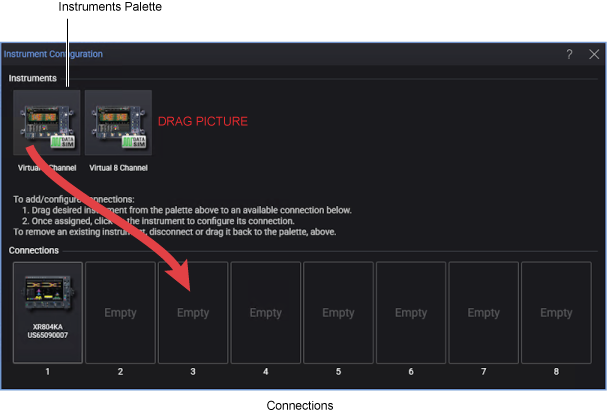
 - In the Instrument Configuration dialog box shown in the following picture, drag the simulated pictures between the Instruments palette and the connections. The destination connection need not be empty.
- Click on an instrument picture to open the Configuring Simulated Instruments dialog box.