Differential (or Common-Mode) Channel Setup
 To view the differential or common-mode waveform for the two channels, click the Diff differential display button.
The differential, common-mode, and the original channel waveforms can all be viewed at the same time.
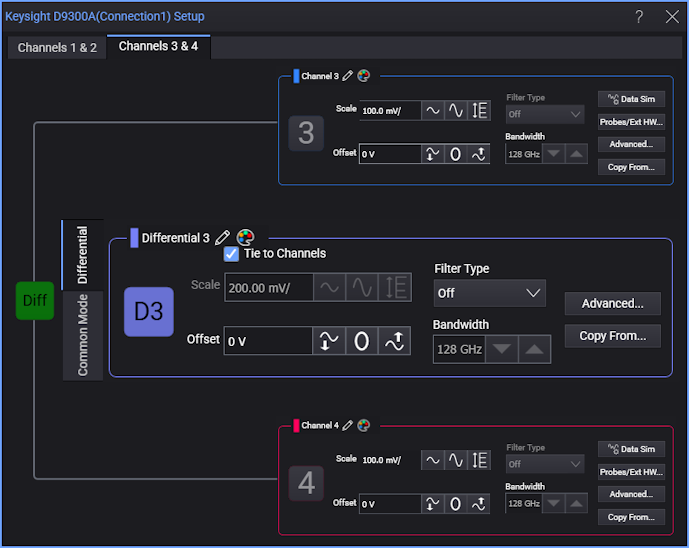
For differential channels, the Setup dialog box looks like this.
-
Scale — When Tie to Channels is selected, the scale of the differential or common-mode signal is based on the vertical scales of the channels that are combined to form the signal and cannot be changed.
When Tie to Channels is cleared, you are able to adjust the vertical scale of the differential or common-mode signal independently.
The advanced settings dialog box has an Autoscale Vertical button that will automatically set the vertical scales.
-
Offset — These controls are available for the differential waveform.
-
Bandwidth and Filter Type — These controls are the same as for individual channels (see Bandwidth and Filter Type), but when the two channels are configured for differential and common-mode signals, the same bandwidth and filter type is used for both of the contributing channels.
-
Advanced... — Opens the Differential (or Common-Mode) N Advanced Setup dialog box where you can make advanced settings like deskew, delay, automatic scaling, vertical units, signal type, pattern, and custom waveform names. See Differential (or Common-Mode) N Advanced Setup.
-
Copy From... — Lets you copy settings from another differential or common-mode channel. See Copy Setup From Channel.
-
 — Lets you can change the waveform's label to a more meaningful user name. See Custom Waveform Names.
Waveforms displayed in tiled, stacked, or tab tile views include a waveform label (see Views and Panels).
-
 — Lets you change the waveform color. See Waveform Color.