Documentation Wizard

The Documentation Wizard saves a zip file that includes all the information needed to archive a particular instrument configuration including:

  • Screen Captures
  • Instrument Setup
  • Waveform Window Data
  • Protocol Window Data
  • System Information

Because you can select the information that you want to save in the file, you can configure the zip file for your specific needs. For example, you can quickly save multiple waveforms files, copy these files to an oscilloscope or Infiniium 2026 Offline at another location, and load the files into waveform or Color Grade-Gray Scale memory.

The Document Wizard dialog lists the main categories of information that you can save. Expand each section to show the complete list of options for your zip file. In practice, the dialog can never include all the Save options, as most options are only available under specific instrument settings or modes.
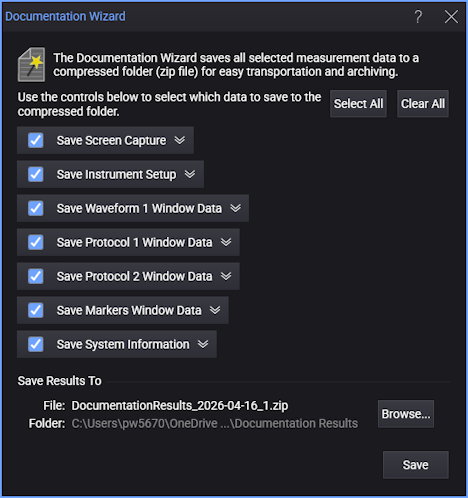
When you click the Select All and Clear All buttons, only the currently displayed Save options are affected. Options not shown remain in there current selected or cleared state. To view an explanation of a Save option, click the chevron icon to expand the option.

You can configure the oscilloscope's front-panel Multi-Purpose button to save a documentation wizard file. See Multi-Purpose Button.

The following table lists the possible Save options with their descriptions.

Options for Saved Data
Item Selected with Command Saved in Zip File
Decibels (Hz) window data
  • FFT Magnitude function. Saves one waveform file for each displayed waveform (F1 FFT[1] (F1).txt)
  • S-parameter. Saves one waveform file for each displayed waveform (S21_Decibels.txt).
  • Screen capture each displayed Decibels (Hz) waveform content window (Decibels (Hz) N Window Screen Capture.png)
Degrees (Hz) window data
  • FFT Phase function. Saves one waveform file for each displayed waveform (F1 FFT[1] (F1).txt)
  • S-parameter. Saves one waveform file for each displayed waveform (S21_Degrees.txt).
  • Screen capture each displayed Degrees (Hz) waveform content window (Degrees (Hz) N Window Screen Capture.png)
Eye Contours results
  • Eye Contours results table in a comma-delimited ASCII file (Eye Contours Window Results.csv)
  • Screen capture of the Amplitude results table (Eye Contours Window Screen Capture.png)
FFT Peaks results
  • FFT Peaks results table in a comma-delimited ASCII file (FFT Peaks N Results.csv)
  • Screen capture of the FFT Peaks results table (FFT Peaks N Window Screen Capture.png)
Waveform Histogram results
  • Waveform Histogram results table in comma-delimited ASCII file (WHist Stats Window Results.csv)
  • Screen capture of the waveform with histogram (WHist Stats Window Screen Capture.png)
Impulse Response plot
  • Screen capture of the Impulse Response plot (Impulse Response N Window Screen Capture.png)
Jitter results window
  • Jitter results in a comma-delimited ASCII file (Jitter N Results.csv)
  • Screen capture of the Jitter results window (Jitter N Window Screen Capture.png)
Log-Freq-Mag plot from Phase Noise analysis
  • Screen capture of the Log-Freq-Mag plot from the Phase Noise analysis (Log-Freq-Mag Window Screen Capture.png)
Limit Line Test results
  • Limit Line results table in comma-delimited ASCII file (Limit Lines Window Results.csv)
  • Screen capture of waveform with limit lines shown (Limit Lines Screen Capture.png)
Markers results
  • Marker results table as comma-delimited ASCII file (Markers Window Results.csv)
  • Screen capture of waveform with markers (Markers Window Screen Capture.png).
Measurement Histogram results
  • Measurement Histogram results in comma-delimited ASCII file (Measurement Histogram N Results.csv)
  • Screen capture of the measurement histogram results table (MHist Stats Window Screen Capture.png)
Mask Test results
  • Mask test results table in comma-delimited ASCII file (Mask Test Window Results.csv)
  • Screen capture of waveform with mask shown (Mask Test Screen Capture.png).
Noise results window
  • Noise results in a comma-delimited ASCII file (Noise N Results.csv)
  • Screen capture of the Noise results window (Noise N Window Screen Capture.png)
Phase Noise Marker results
  • Phase Noise Marker results in a comma-delimited ASCII file (Phase Noise Markers Window Results.csv)
  • Screen capture of the Phase Noise Marker results window (Phase Noise Markers Window Screen Capture.png)
Protocol listing window
  • Protocol listing window in a comma-delimited ASCII file (Protocol N Results.csv)
  • Screen capture of the Protocol listing window (Protocol N Window Screen Capture.png)
Measurement results
  • Measurement results table in comma-delimited ASCII file (Results Window Results.csv)
  • Screen capture of Results table (Results Window Screen Capture.png)
Seconds (Hz) window data
  • FFT Group Delay function. Saves one waveform file for each displayed waveform (F1 FFT[1] (F1).txt)
  • S-parameter. Saves one waveform file for each displayed waveform (S21_Seconds.txt).
  • Screen capture each displayed Seconds (Hz) waveform content window (Seconds (Hz) N Window Screen Capture.png)
Step Response plot
  • Screen capture of the Step Response plot (Step Response N Window Screen Capture.png)
Screen capture of entire display Screen capture of entire display (Entire UI Screen Capture.png)
Instrument setup file Instrument setup file (InstrumentSetup.seti)
System information System information shown in the Help > System Information... dialog box (SystemInfo.txt). See System Information.
S-Parameter files Touchstone S-parameter file for a DUT setup (example, DUT N S-Parameters.s2p)
Waveform window data
  • ASCII Y-value waveform files(.txt) and optional y-value HDF5 format (.h5).
  • Color-grade gray-scale database waveform and csv files (.cgsi, .csv).
  • Screen capture of waveform content window (Waveform Window Screen Capture.png)

At the bottom of the dialog box, click Browse... to select the folder and name for saving your file. Click Save to actually save the file. The default filename is DocumentationResults with the current date and an incremented index number appended:

DocumentationResults_<year>-<month>-<day>_<index>.zip

The default folder for saving images is the \Documentation Results user folder.