Waveform Memories
Use the Waveform Memories dialog box to load single-valued waveforms into any of eight available memories.
The waveform memories are non-volatile because they are stored on the hard disk. These memories are restored each time the instrument is turned on.
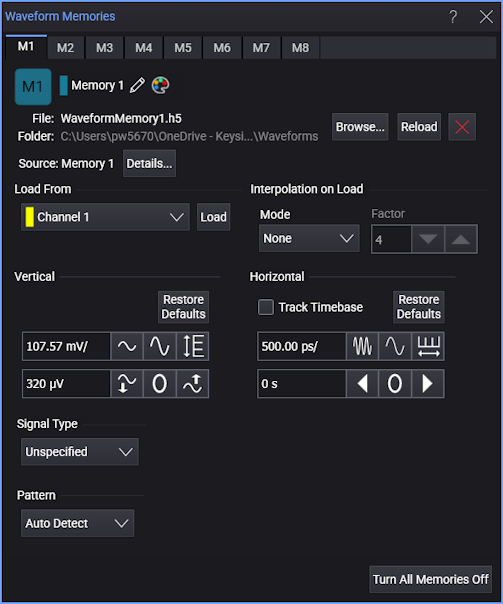
-
 (Memory State Indicator) — This button appears when a waveform has been loaded into a memory. You can click on the gray or colored tab button to display or hide the waveform on the display.
Buttons in Dialog Box Tabs Button Description Example in Picture
Colored button indicates that the waveform is loaded and displayed Memory 1 
Gray button indicates that the waveform is loaded but not displayed Memory 2 none Missing button indicates that memory has no waveform loaded Memory 3 -
 — Lets you can change the waveform's label to a more meaningful user name. See Custom Waveform Names.
Waveforms displayed in tiled, stacked, or tab tile views include a waveform label (see Views and Panels).
-
 — Opens a dialog box where you can select the color of the waveform memory.
-
Browse... — Loads a previously saved waveform file.
-
Reload — If a saved waveform file has changed in the folder, click this to reload the file into the waveform memory.
-
 — Clears waveform data from a memory.
 -
Details... — When a waveform has been loaded into a memory, this will give you more information about the waveform.
-
Load From — Lets you load a waveform memory from a displayed input channel, math function, or other waveform memory. Select the waveform, and click Load.
The Interpolation on Load controls let you perform waveform interpolation on the loaded waveform. This is the same type of interpolation that can be applied to acquired waveforms. See Acquisition Tab.
Interpolation is applied only when clicking Load to load the waveform.
-
Vertical — These controls let you adjust the vertical scale and offset of the loaded waveform. Click Restore Defaults to undo any changes to these settings.
-
Horizontal — These controls let you adjust the horizontal scale and position of the loaded waveform.
The Track Timebase check box, which toggles tracking of acquired waveform horizontal settings, must be cleared before you can adjust the Horizontal settings.
Be aware that with Track Timebase selected, Infiniium's horizontal trigger delay setting may prevent the memory waveform from being displayed.
Click Restore Defaults to undo any changes to these settings.
-
Signal Type — Specifies the signal type of the loaded waveform. See Signal Type Setup. This control is identical to the one that appears in the Signal Type Setup dialog box Memories tab. You can make these selections in either location.
-
Pattern — Specified the pattern of the loaded waveform. See Pattern Length and Symbol Patterns. This control is identical to the one that appears in the Signal Type Setup dialog box Memories tab. You can make these selections in either location.
-
Turn All Memories Off — Quickly turns off the display of all waveform memories.