Channels Setup
Channel Numbering
The Infiniium 2026 user interface has up to 8 connections for supporting multiple instruments and simulation inputs.
Within each connection, there can be up to eight channels.
Channels are numbered in a "<connection>.<channel>" format, except in the first connection, the "<connection>." portion is omitted. For example, a channel numbered "8.8" is the eighth channel in the eighth connection, and a channel numbered "4" is the fourth channel in the first connection.
Instruments (or virtual/simulated oscilloscopes) are assigned to connections by dragging-and-dropping in the Instrument Configuration dialog box.
Channel Badges
The waveform badges bar, located along the application window's bottom edge, contains buttons and information about each input channel.
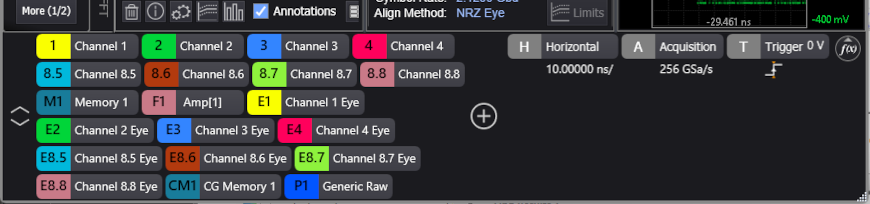
If waveform badges are not wrapped, you can click the Scroll Left and Scroll Right buttons to bring the hidden channel badges into view.
 The "+" ("Turn Signals On or Off...") button, located in the badges bar between the Waveform badges and the Horizontal badge, opens the Signal Management dialog box where you can configure instruments, add functions, add memories, add real-time eye diagrams, and add protocol decodes. See Signal Management.
Channel Setup
Click the colored portion of a channel badge to open the channel Setup dialog box.
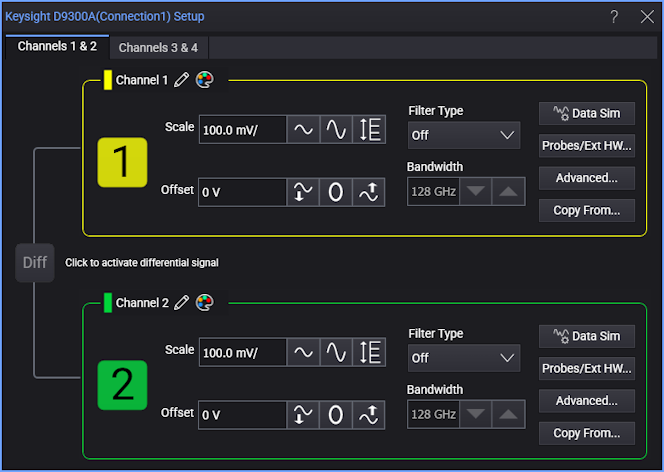
Within the channel Setup dialog box, there are tabs for selecting channel pairs.
SIMULATED CHANNELS
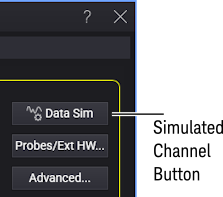
For simulated channels, the dialog box includes the DATA SIM button. Clicking this button to opens a dialog box for Configuring Simulated Instruments.
This dialog box lets you:
-
Turn channels on or off by selecting the colored channel button.
Turning a channel off also turns off the markers assigned to that channel.
- Adjust the channel's vertical scale and offset. See Vertical Scale and Offset.
- Add a bandwidth-limit filter. See Bandwidth and Filter Type.
- Change the waveform name/label. See Custom Waveform Names.
- Change the waveform color. See Waveform Color.
- Specify external hardware in the Probe Setup dialog box. See Probes/External Hardware.
- Specify advanced channel settings. See Channel N Advanced Setup.
- Copy settings from another channel. See Copy Setup From Channel.
- Configure the simulated source in virtual real-time oscilloscopes. See Configuring Simulated Instruments.
- Combine two channels for differential and common-mode signals. See Differential (or Common-Mode) Channel Setup.
- Specify advanced differential or common-mode channel settings. See Differential (or Common-Mode) N Advanced Setup.